
Claude training
Six short lessons · about 40 minutes · internal training for Teem Members

Before anything else
Finish the training before you start using Claude. Six lessons, about 40 minutes, in the order they are in.
Lesson 01
Set up your Claude account
Ten minutes. You do this once.
Setting the account up right matters, and the part that matters most is the Instructions for Claude box. That is where you tell Claude who you are, and it carries into every conversation you have with it.
1. Sign in
- Go to claude.ai or download the app.
- Enter your @hireteem.com email and click “Continue with SSO”.
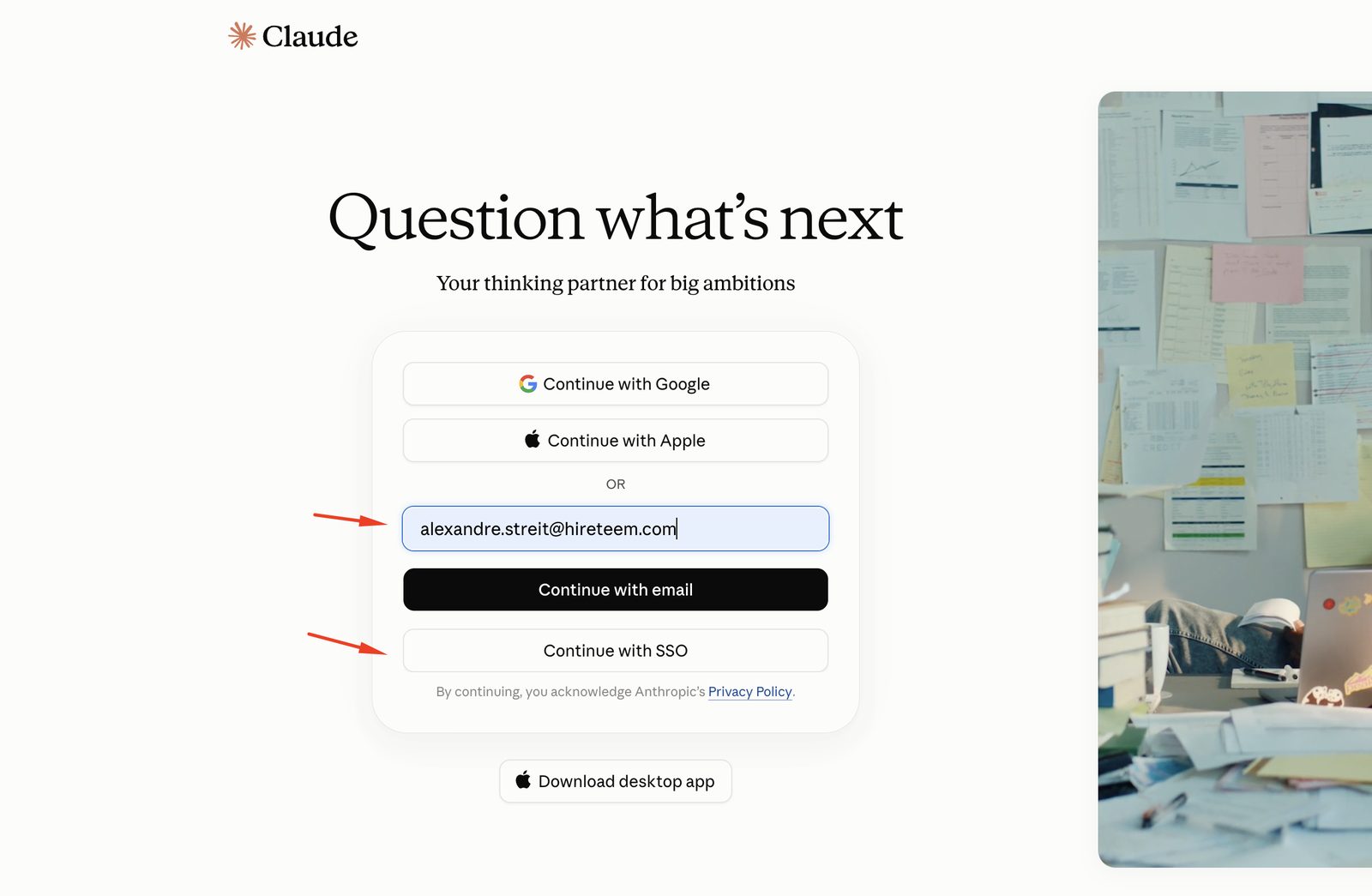
- Claude sends you to Microsoft. Sign in with your Teem account, the same one you use for Outlook and Teams.
2. Open Settings
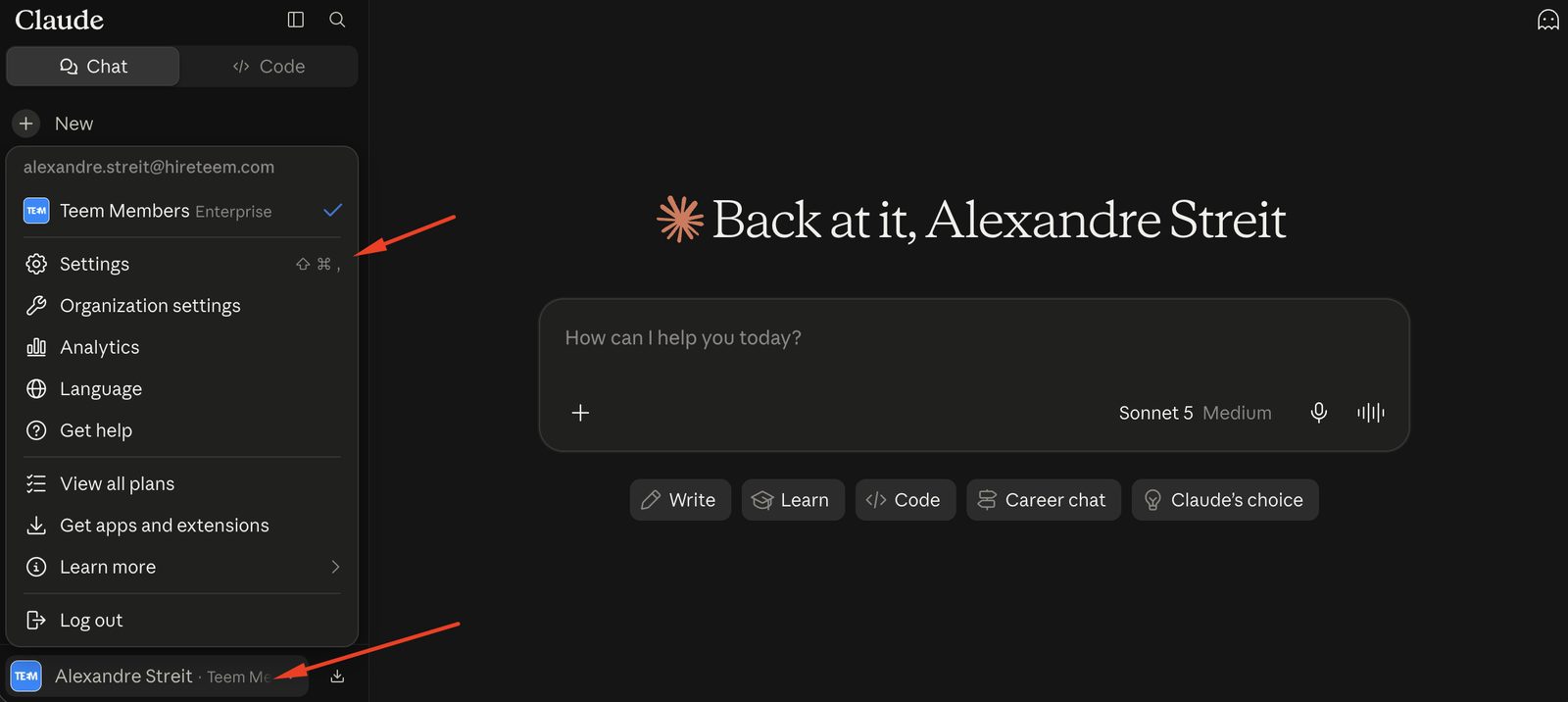
- Look at the bottom left corner. It has to say Teem Members. If it says anything else, click your name and switch to it.
- Click your name in the bottom left corner, then Settings.
3. Tell Claude who you are
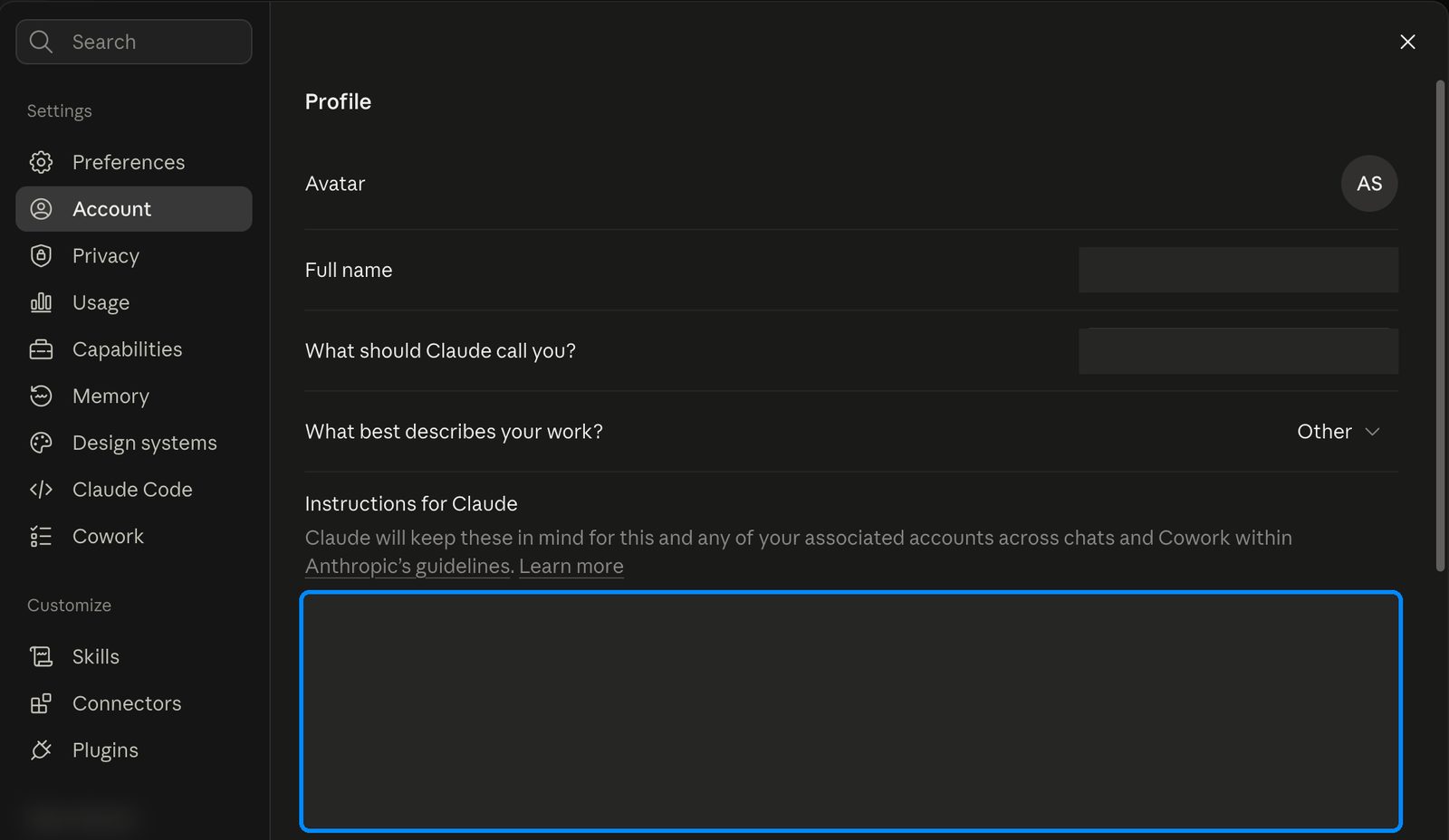
- Open Account. Fill in What should Claude call you?
- In Instructions for Claude, use the template below as a base and swap what is inside the brackets for your own details. It is a starting point, not a limit. If you already know other tasks you do, or anything else worth Claude knowing, put it in.
Call me: [first name]
My role: [your job title]
I support: [practice name] through Teem. My manager is [name].
What I do most days:
- [task, in your own words]
- [task]
- [task]
What I hand to the office instead of doing: [two or three things]
Systems I work in: [EHR, messaging, insurance portals]
How I like answers: short and copy-ready, no preamble. Tell me where the
answer came from. Ask me one question when something is missing instead
of guessing.
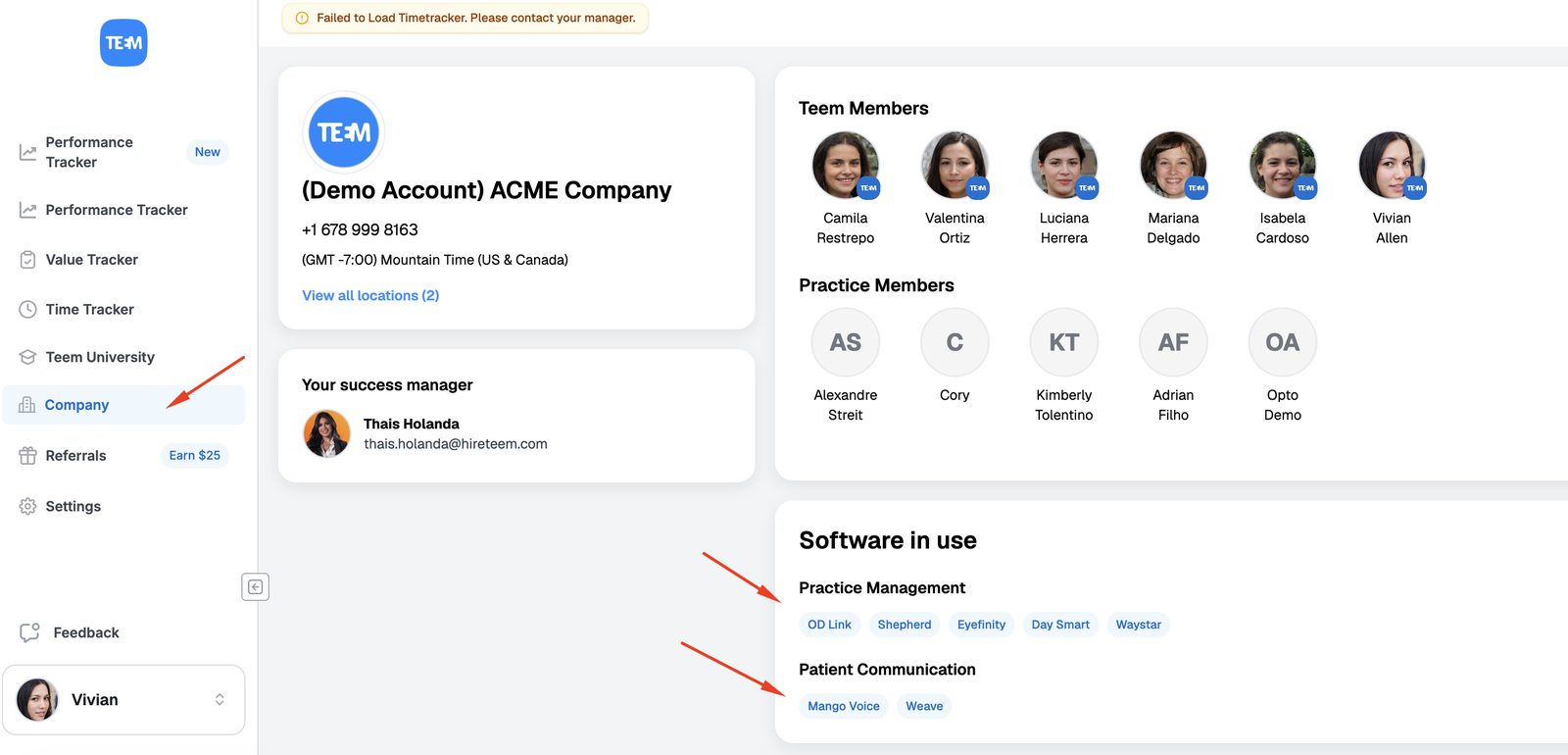
When I am working inside a client project, that project wins over anything here.- You should be able to pull most of the information from the Teem portal. To see the software the practice uses, click on “Company” and the information in the board “Software in use”:
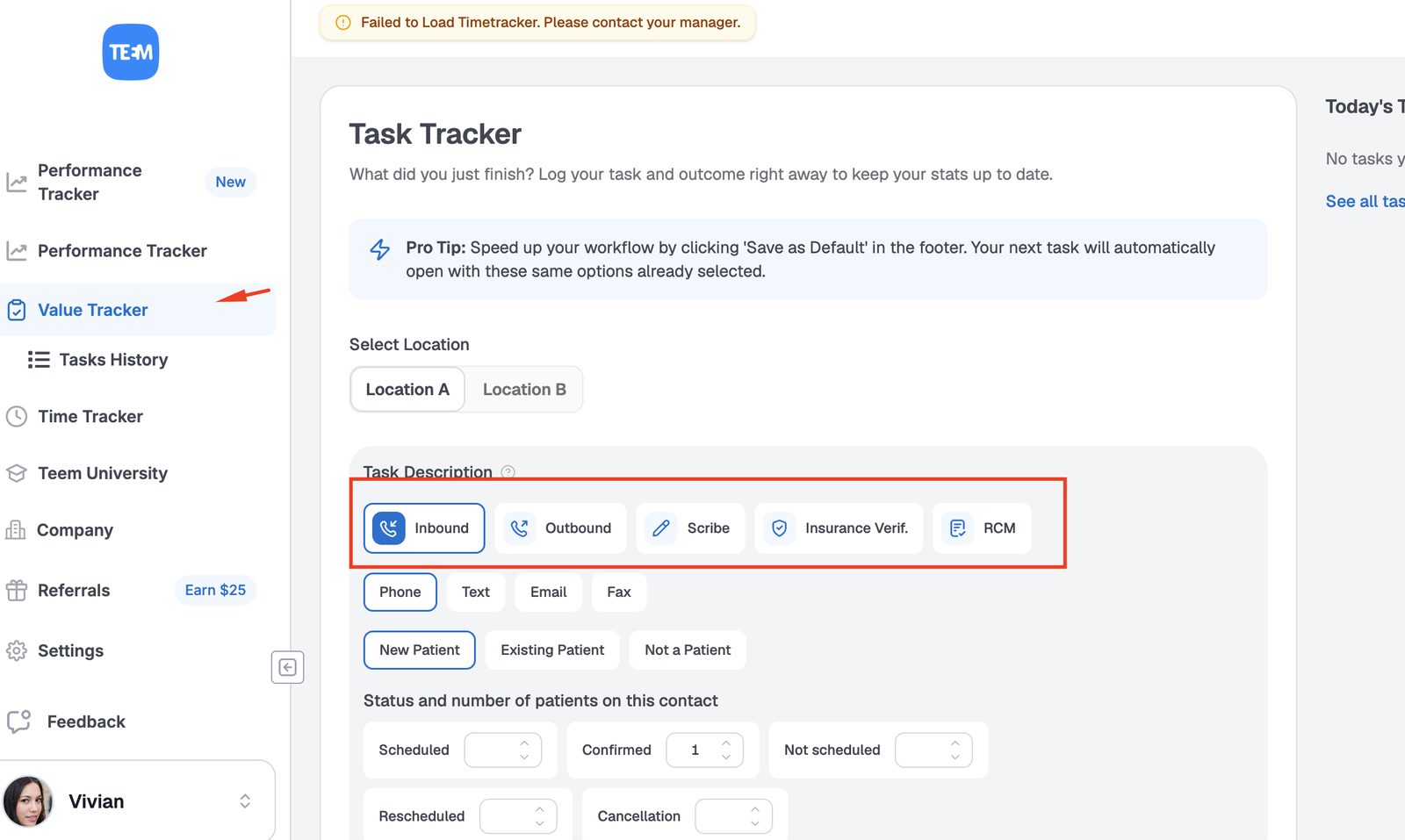
- To find the main tasks you were originally hired for, click on “Value Tracker”. The first row, under “Task Description”, lists the main tasks assigned to you. Use that as your starting point if this is your first day at Teem. As you get more experience your client will ask you for more, so come back and update it.
- Inbound = Inbound Calls
Outbound = Outbound Calls
Scribe
Insurance Verif = Insurance Verification
RCM = Revenue Cycle Management
- It saves by itself. Close Settings, open it again, and check your text is there.
- You can change this whenever you want. Start with the basics, add to it as you learn the practice, and ask your manager if anything here is unclear.
4. Never put this in that box
- Anything about a patient: name, date of birth, member ID, chart details.
- Passwords or portal logins.
Lesson 02
What a project is
Five minutes. This is a Claude feature, not a Teem one.
A project is a workspace with its own chats, its own files and its own instructions. Anthropic calls them self-contained workspaces. You set the context once, and every chat you start inside that project already has it. A chat you start outside the project has none of it.
The three parts
- Knowledge. Files you upload once: documents, guides, spreadsheets, notes. Claude reads them in every chat in that project, so you never attach them again.
- Instructions. How Claude should behave in this project: the tone, the format you want back, what to do and what to avoid. They apply to every chat there.
- Chats. They stay in the project, so the work on one subject lives in one place instead of being scattered.
Where they are
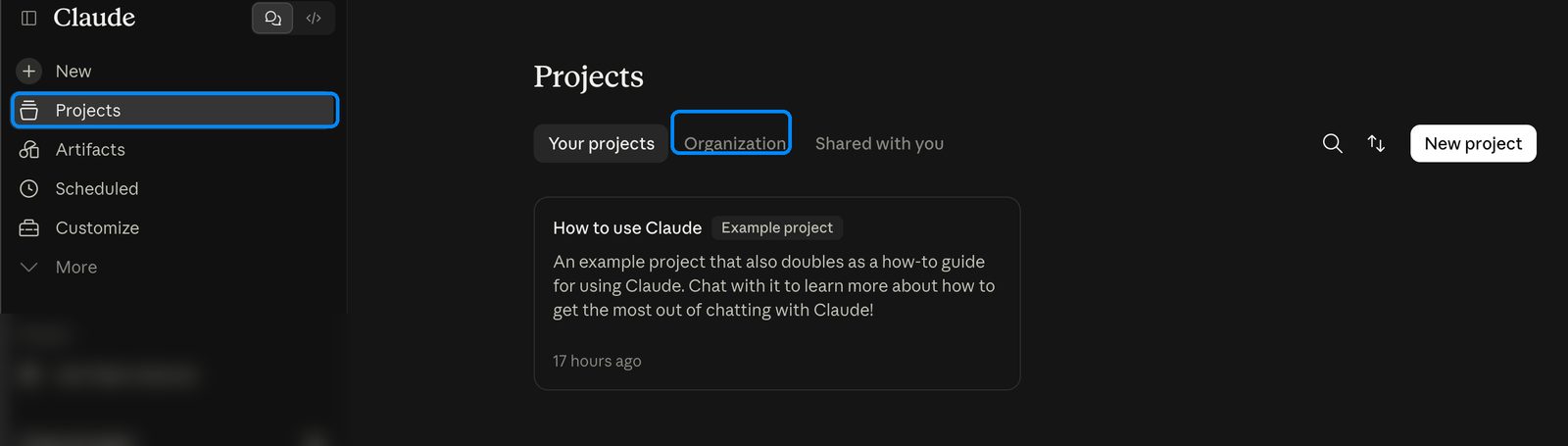
- Projects in the left sidebar. Your projects are the ones you made, Organization are the ones shared with everyone, Shared with you are the ones someone gave you access to.
When to use one
- Work you come back to, with the same reference material and the same kind of answer every time. That is a project.
- A one-off question with nothing to reuse. That is a normal chat, do not build a project for it.
Getting good results
- Open the project first, then ask. Asking in a blank chat is the most common mistake, because Claude has no way of knowing which context you meant.
- Keep the files current. Claude answers from what is in there. An old file gives you an old answer, confidently.
You can make your own
New project on the Projects page. Give it a name, write a line or two of instructions, drop in the files you keep reusing. Good for your own recurring work: a weekly report you always build the same way, a format you like and do not want to explain again.
Lesson 03
What a skill is
Five minutes. Nothing to install, nothing to switch on.
A skill is a written procedure Claude follows when you ask for it, step by step. Someone writes the procedure down once, and Claude runs the same steps every time instead of improvising a slightly different answer each day.
How to use: Type / and pick one
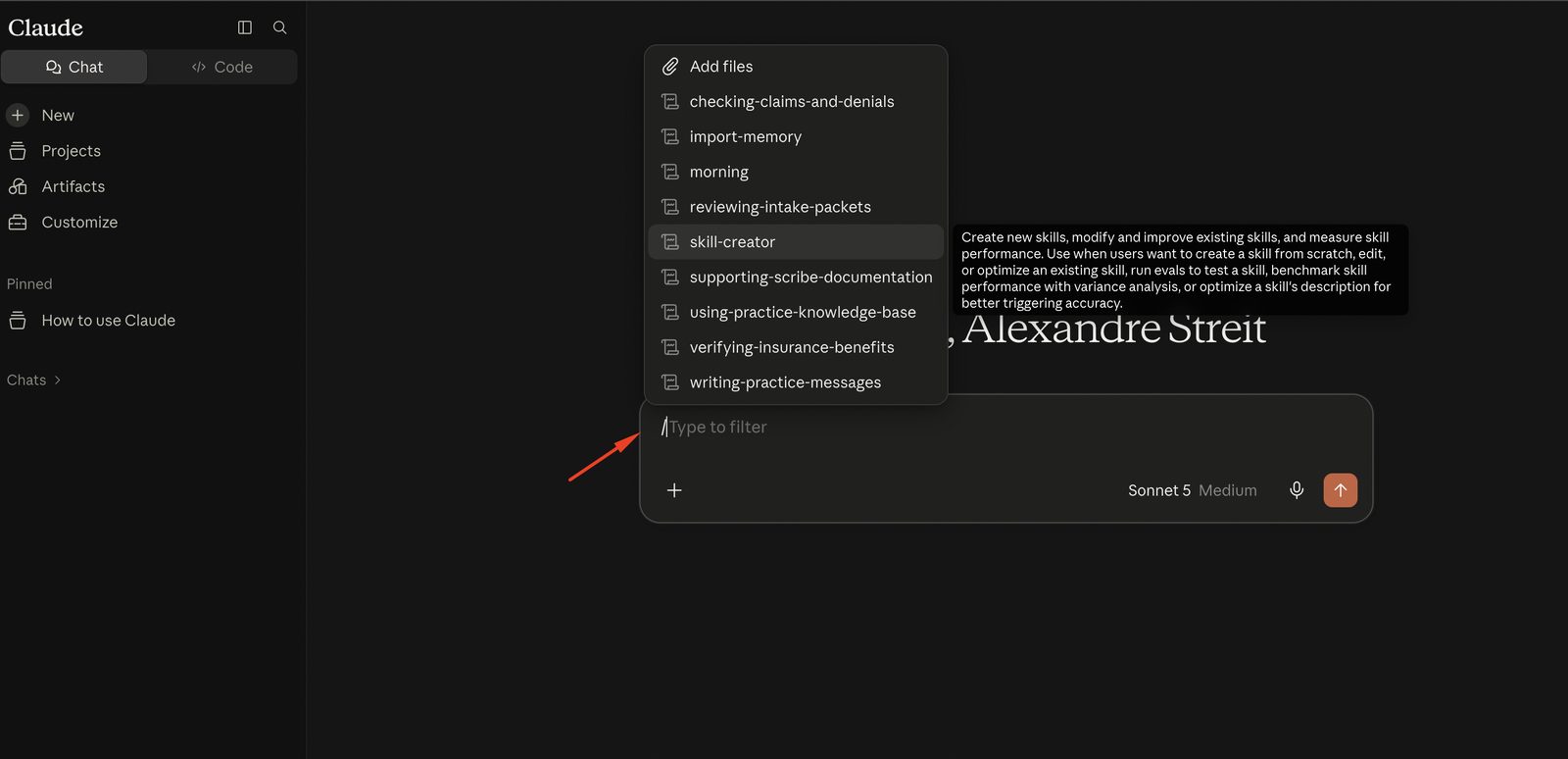
- In the message box, type /. The list of the skills you have opens. Keep typing to narrow it down.
- The panel beside the list says what each skill does. Read it once, so you know what you have.
- Click the one you want. Its name goes to the front of your message, and everything you type after it is the task.
Project or skill?
- Projects store knowledge. What is true about the work: the files, the context, the instructions.
- Skills perform tasks. How a piece of work gets done, step by step.
They stack. The skill brings the method, the project brings the facts, so the same skill used in two projects gives you two different answers, each right for its own work.
Two habits
Read what comes out
A skill makes the work consistent, not correct. Nothing leaves your hands unchecked.
Say when one is wrong
If a skill misses a step or does not match the way the work goes, tell whoever maintains it. A skill is meant to be corrected, and a workaround you keep to yourself helps nobody else.
Lesson 04
Patient information: what is allowed
Five minutes. This is the one to read twice.
The tool is compliant. What you do with it might not be. Teem's Claude workspace is covered by an agreement with Anthropic that allows patient information, the same as the other systems you work in. That covers the tool. It does not cover carrying patient information out of the systems you are allowed to use. That part is on you, and it is what this lesson is about.
It depends on whose computer you are on
- Working inside the clinic's computer, through remote access: you are inside the practice's own environment. Do the work the way the practice does it.
- Working on your own computer: one rule sits above all the others, and it is the next section.
On your own computer: never download
- No file leaves a system and lands on your machine. No PDF saved, no export, no screenshot saved to Desktop or Downloads, no photo of the screen with your phone.
- Not even to upload it somewhere else right after. That is the exact move this rule exists to stop: the file is out the moment it is saved, and deleting it later does not undo that.
What you can do instead
- Copy from the page and paste into Claude. Select the text on the screen, copy it, paste it into the chat. Nothing is saved on your machine, and the information stays between the two systems you are allowed to use.
- Paste only the part the task needs. One page, one section, one claim. Not the whole record because it was easier to select.
- Leave out what the task does not need. Date of birth, member ID and social security number are rarely part of the question you are asking.
Never, on any computer
- Another AI tool. ChatGPT, Gemini, Copilot, or a personal Claude account. Only the Teem workspace has the agreement behind it.
- Personal channels. Personal email, WhatsApp, a personal cloud drive, a phone note.
- Recordings or transcripts of patient conversations.
- Patient information in the wrong place inside Claude: in a project's files, in your Instructions for Claude, or in the title of a chat. Those are saved and read again later. A chat message is for the task in front of you.
- Your login. Nobody else uses your account, at home or in the office.
Lesson 05
Writing good prompts
Ten minutes. This is the skill that makes everything else work.
Claude is only as good as what you tell it. Flat, generic answers almost always come from a one-line request. Writing a good prompt is a skill, and it is not complicated once you see the pattern.
Start with a task you already know
- Pick something you were going to do yourself anyway, ideally something repetitive you know inside out.
- It may be slower the first time, and the first tries may miss. That is part of learning the tool.
- Because you know the task, you can tell straight away where the answer is strong and where it is off. On a task you have never done, you cannot judge the result at all.
The four moves
Give it context
Claude does not know your practice, your doctors or what you are working on unless you tell it. Treat it like a sharp new hire on day one: plenty smart, no idea about your world yet.
Be specific about what you want
Say the format, the length, the tone and who it is for. A vague prompt comes back vague.
Show it an example
If you have something that worked before, paste it in. One or two real examples teach Claude more than a long paragraph of instructions, and it is how the output starts sounding like the practice instead of a stiff robot.
Do not settle for the first answer
The first response is a draft. Tell it what to fix, in normal words: "make it shorter", "too formal, loosen it up", "you missed the part about the copay". Going back and forth two or three times is the normal way to use it, and it is where the good results come from.
Two more habits
Start a fresh chat for a new task
Long chats get worse the longer they run, because they fill up with old back and forth. New task, new chat.
Say what you do not want
"Do not give me five options when I asked for one." "Skip the preamble and get to the answer." "Stop ending every message with a question."
The one to remember: let Claude write the prompt
You do not have to be good at writing prompts to get good results, because Claude can write the prompt for you. Tell it what you are trying to do in plain language and ask it to build the prompt:
I want to do [X]. What is the best way to prompt you for this? Write me the prompt, and ask me anything you need to know first.
The first version usually is not quite right. Say what is off ("this is for a patient, not for the doctor", "keep it shorter") and let it adjust. When the prompt looks right, open a new chat, paste it and run it. Keep the ones that work.
The voice version, for when you are not sure what you want. Click the microphone and just talk. Ramble through the whole situation, no need to be organized. Then say:
Do not do this yet. First, take everything I just said and write me a clean prompt for it, with an example of the output I am after.
Three to steal
Swap the [bracketed bits] for your own details.
Here is everything on my plate this week: [dump your tasks]. Sort it into a simple plan, grouped by day. Flag the two or three things that matter most, and call out anything that will slip if I do not start it early.
Make this shorter and warmer, same meaning, ready to send: [paste your draft].
I want to [task]. Write me a good prompt for it, ask me anything you need first, then wait for my go-ahead before doing it.
Adapted from the Teem guide "Getting started with Claude at Teem".
Lesson 06
The three skills and the client project
Eight minutes. Three skills, one project, and what we need back from you.
From the interviews we did with you we built three skills and one project per client. We want to test them with you during the pilot and find out what works and what does not.
Your practice's project
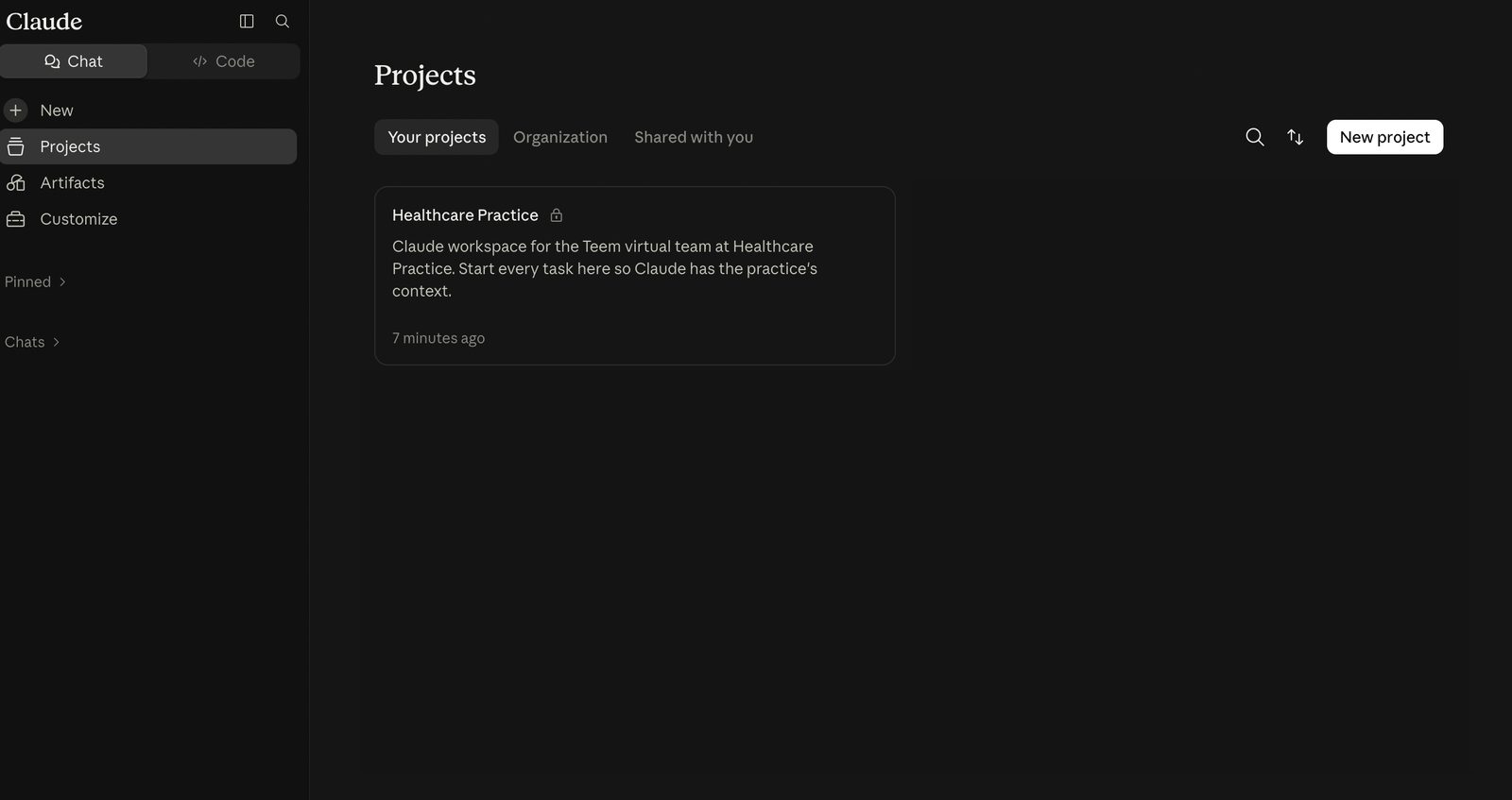
Where it is. Click Projects in the left sidebar, then the Shared with you tab. Your practice is in there. Open it and run your work from inside it, including when you call a skill, because that is where Claude already knows who the practice is.
What is in it. The right side of the project page has two things. Instructions tell Claude how to answer for this practice. Context is the files: what we pulled out of the interviews, the team policies and the message templates. Claude reads all of it in every chat you start there.
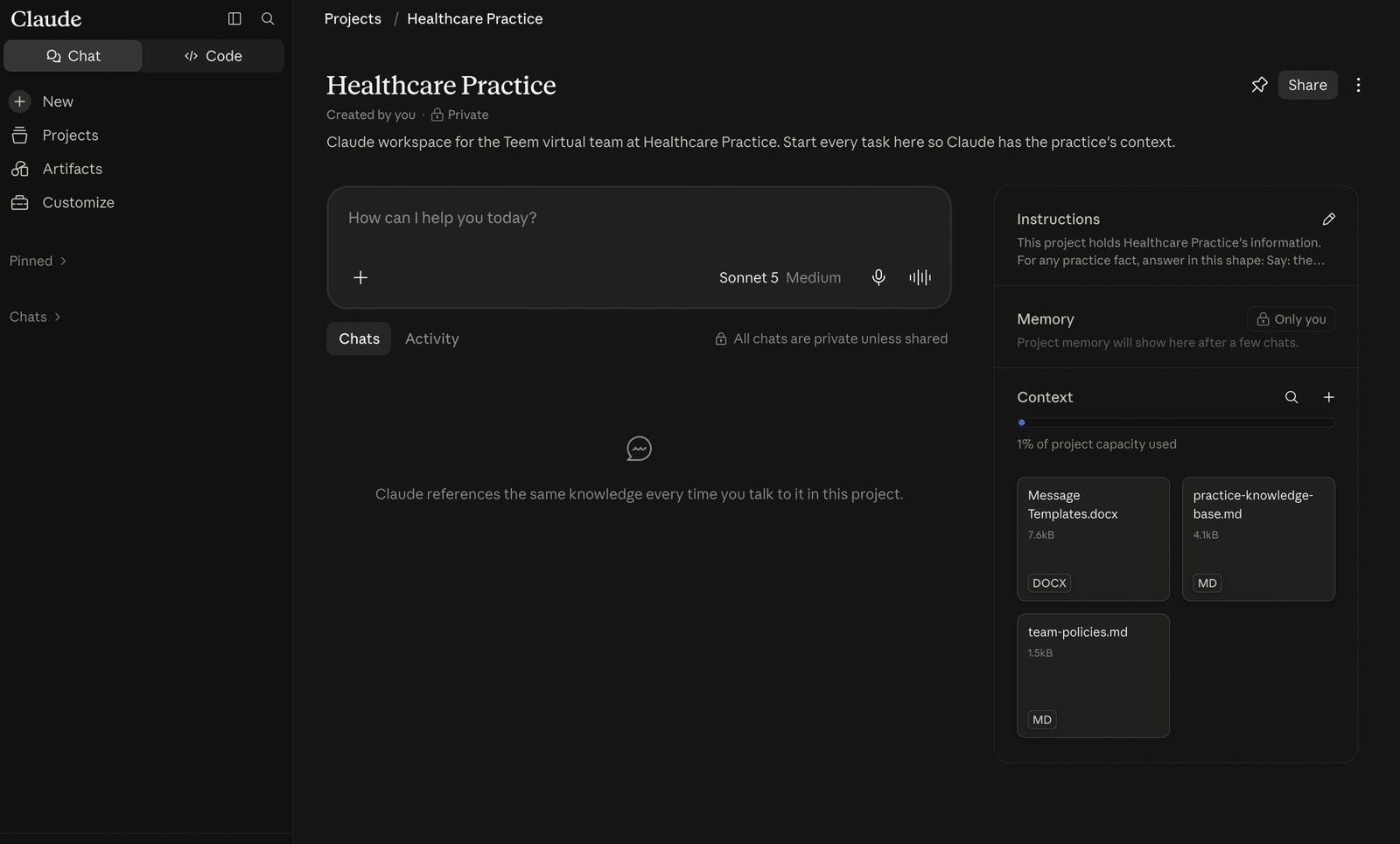
It is thin, and that is where you come in. We talked to each of you for about half an hour, so what is in there now is a starting point and not much more. Read it and if something seems off, please go ahead and adjust it. If something is missing, please put it in: the codes your doctor uses, the way the practice words things, any information that helps Claude answer the way your practice would.
How to change a file. Unfortunately there is no way to edit a file inside the project. Copy the content into a Word document, make your changes there, delete the old file from the project and upload the new one. What is in there today are markdown files, and a Word document works just as well.
Everyone shares it. All the Teem Members at your practice work in the same project, so what you add helps all of them, and what is wrong in there is wrong for all of them. Keep what you upload clean and current, and replace an old version instead of leaving both.
No patient information in the project, ever. That rule is Lesson 4 and it does not change here.
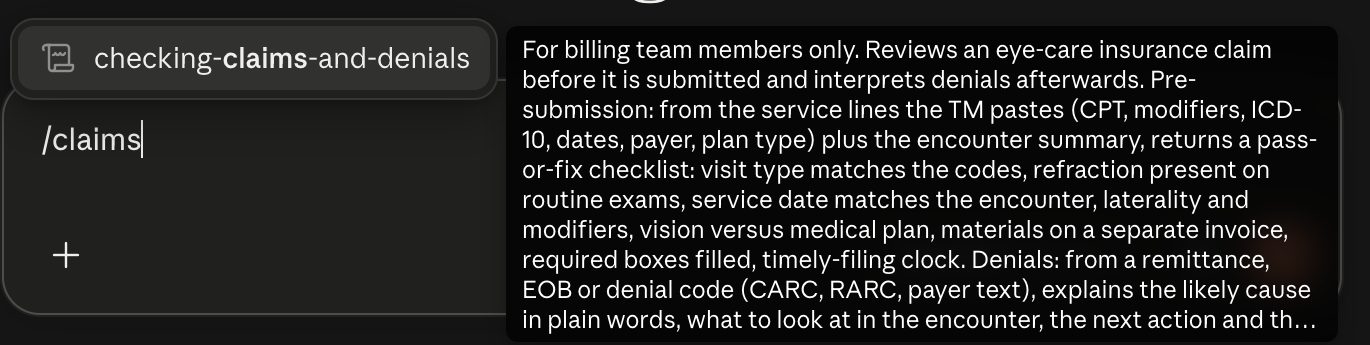
1. checking-claims-and-denials
For billing. Reviews a claim before it goes out, and explains a denial after it comes back.
How to use it: type /, pick it from the list, then paste the claim lines or the denial code with a one-line summary of the visit, and ask your question.
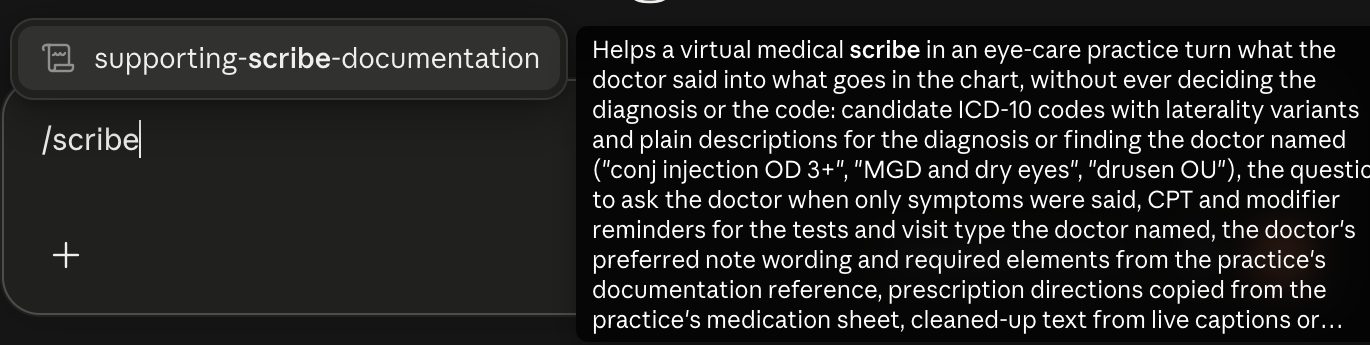
2. supporting-scribe-documentation
For scribes. Turns what the doctor said into what goes in the chart: candidate ICD-10 and CPT codes, the doctor's preferred wording, prescription directions from the practice's sheet, and a check of the coding table before the doctor signs. It never decides the diagnosis. The doctor does.
How to use it: type /, pick it, then paste or type exactly what the doctor said. Describing a condition in plain words is enough to get the codes back.
For the wording to come out right, the project has to have it in writing. Put the doctor's preferred wording in the project knowledge and say which document it comes from, so the skill knows where to look.
3. writing-practice-messages
For anyone who writes to patients. Drafts texts, emails, voicemail scripts, recall outreach and replies to reviews in the practice's voice, ready to paste.
How to use it: type /, pick it, say who it is for and what happened, and use [patient] instead of the name. The less you tell it, the more generic it comes back, so give it the details you would give a colleague.
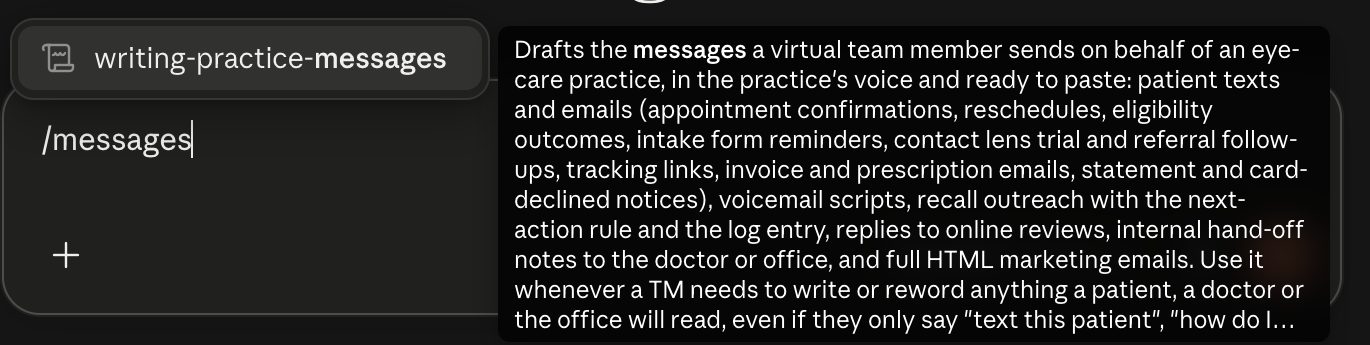
It writes from the message templates in the project, and the ones in there now are generic. If the practice already has its own, upload them and delete the generic file, so what comes out sounds like the practice.
Build your own
There is an Anthropic skill in the / menu called skill-creator, and it writes skills for you. If you do a task we never talked about, try building one for it. Same with projects: to try something on your own, make a new project on the Projects page. There is no button to copy a project, so open your practice's one in another tab and carry across whatever is useful.
Tell us how it goes. What works for one of you can end up going to the whole company.
What we need back from you
- Say when it works and when it misses. Both are useful. A skill nobody comments on is a skill nobody used.
- When it misses, say what was missing. Most misses are a practice rule that nobody has written down yet, and that goes into the project.
- Keep reviewing everything before it leaves your hands. A skill under test changes nothing about that.